Skip to main content

- Go to homepage
- Study
- MFA
- apple android
Set up multifactor authentication on Apple or Android devices
PingID lets you securely log in to TAFE NSW systems using multifactor authentication (MFA) on your Apple iOS or Android device.
Follow the steps on this page to:
- set up the PingID App and pair it with your TAFE NSW account
- use PingID when you log in.
Before you start
You’ll need a computer connected to the internet and your device.
If you’re using Apple iOS
Make sure your device:
- is up to date with iOS 15.0 or later
- has a lock on it, like a passcode or face ID.
If you’re using Android
Make sure your device:
- is up to date with OS 9.0 or later
- has a lock on it, like a passcode or face unlock.
Account security
If you see a request on your device when you’re not trying to log in, it could be someone else with your password. If this happens, change your password immediately and report it to Student Services on 131 601.
Step 1: Install Ping ID
-
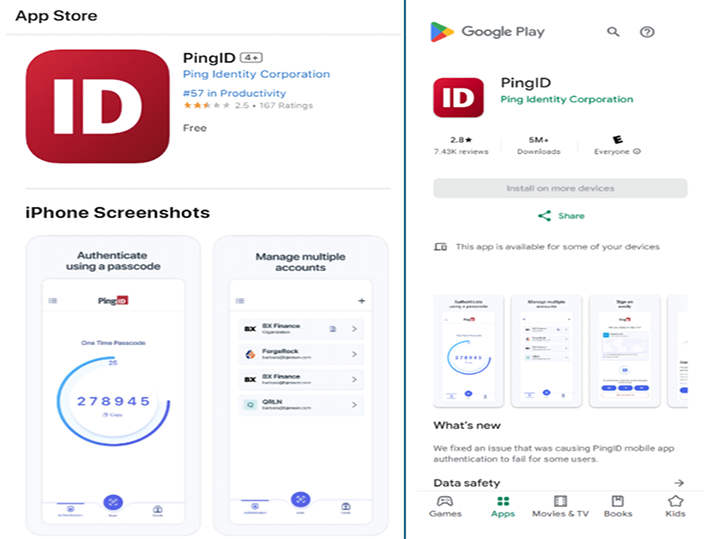
Open the App Store on your Apple device or the Google Play Store on your Android device.
-
Search for ‘PingID’ and install it on your device.
Step 2: Set up PingID
Option 1: If you have logged in to your TAFE NSW account before
If you’ve already logged in to your TAFE NSW account, you’ll need to adjust your account settings before you can activate MFA.
-
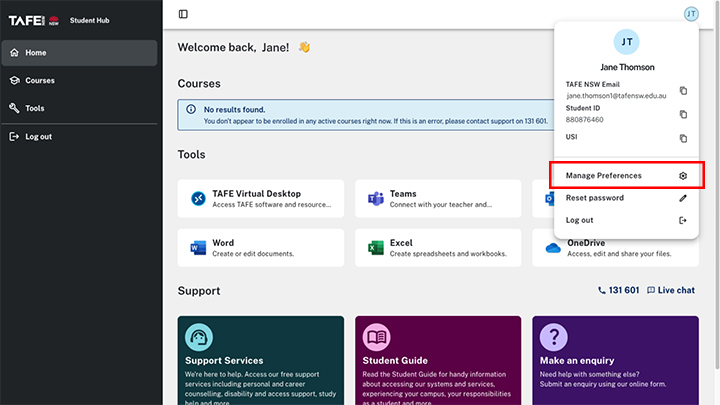
Log in to the Student Hub with your TAFE NSW account.
-
Locate your name in the top right corner and select ‘Manage Preferences’ from the dropdown menu.
-
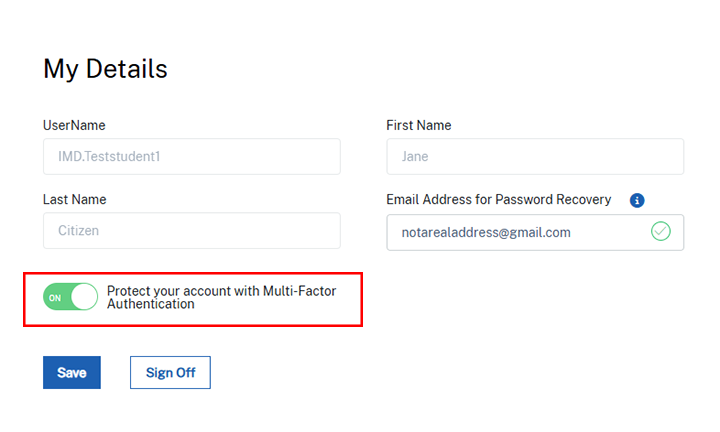
Slide the MFA switch to ‘ON’.
-
Select ‘Save’.
-
Log out of your account, then log back in.
-
Follow the prompts to set up your MFA software.
Option 2: If you’re logging in for the first time follow the steps below.
On your computer
-
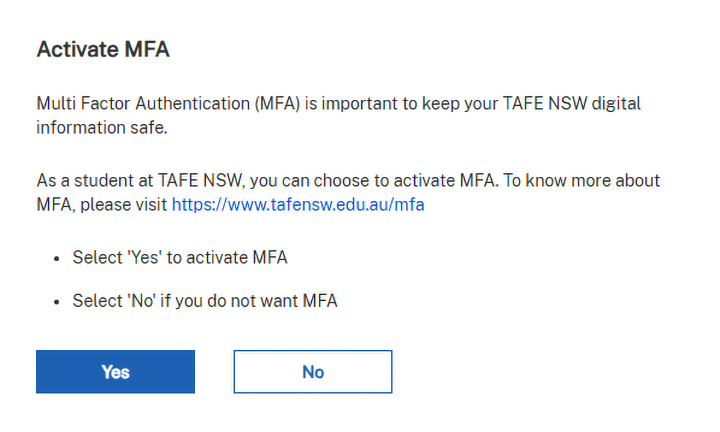
The first time you log in to a TAFE NSW system with your username and password, you will see the 'Activate MFA' screen.
-
Select ‘Yes’.
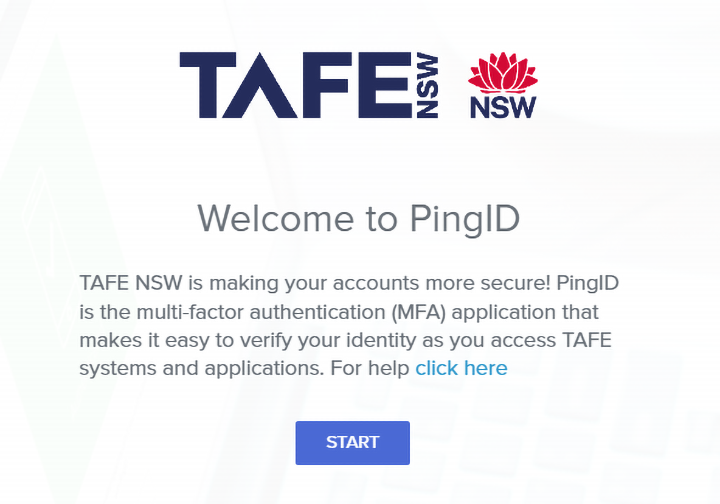
- You will see the ‘Welcome to PingID' screen. Select 'Start’.
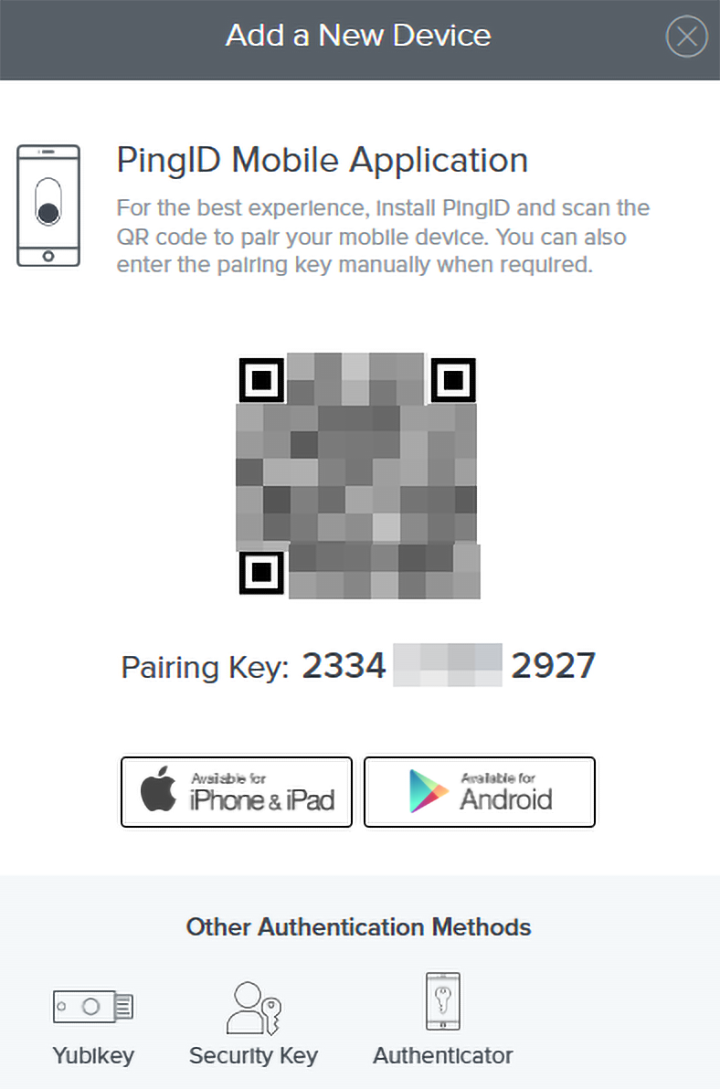
- Your computer screen will show ‘Add a new device’.
On your device
-
Open the PingID App on your device.
-
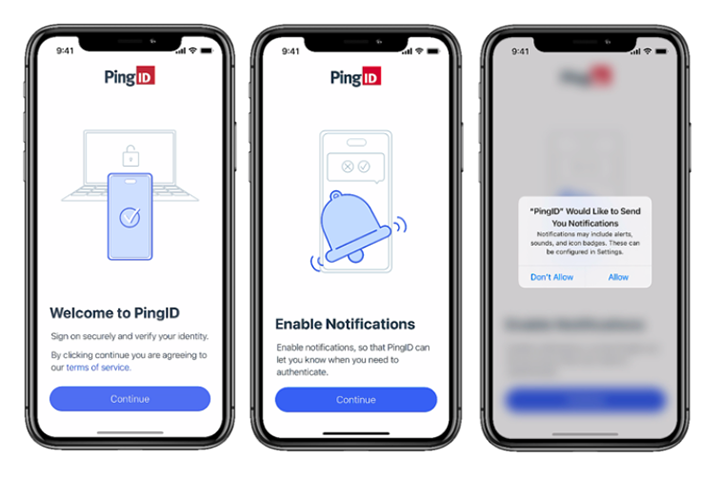
The first time you open the PingID App you’ll need to accept the Terms of Service. Select 'Continue’ on the ‘Welcome to PingID’ screen.
-
PingID will ask for permission to enable notifications.
-
Select ‘Continue’ to enable notifications.
-
Select ‘Allow’ on the confirmation pop-up window.
Step 3: Pair your device
-
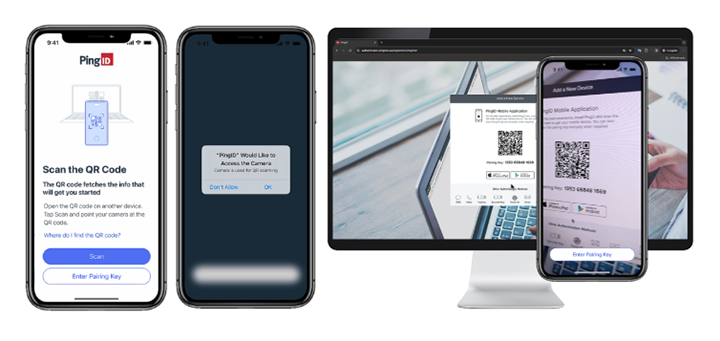
You’ll be asked to allow PingID to access your camera. Select ‘OK’.
-
Use your device's camera to scan the QR code on your computer screen.
-
If you have issues scanning, select 'Enter Pairing Key Manually' and enter the code you see on your computer screen.
-
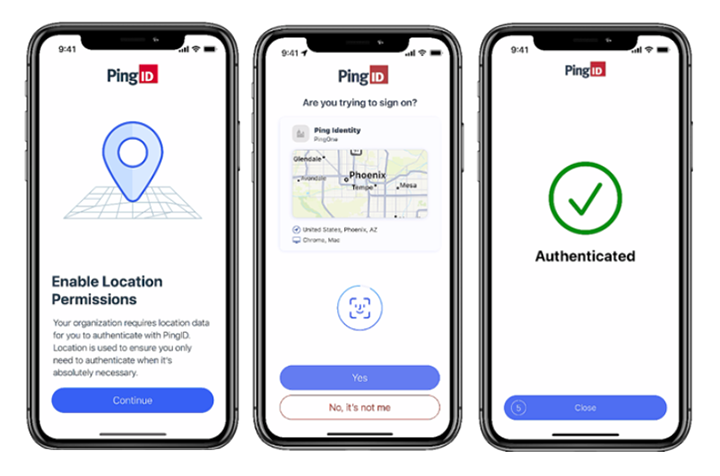
You may be asked to enable location permissions for PingID.
-
Select ‘Continue’ and then select the relevant location permissions. Select ‘Precise’ and ‘When using the app'.
-
Once successful, you’ll see a message asking if you are trying to sign on.
-
When prompted, select ‘Yes’ to approve the notification, or authenticate using biometrics or your passcode.
-
You have a limited amount of time to approve the request.
-
If successful you’ll see a green check mark confirming authentication.
Authenticate your login with PingID
When you log in to the TAFE system you’ll see a notification on your device. To confirm it’s you who is logging in:
- Select ‘Yes’ on the PingID app.
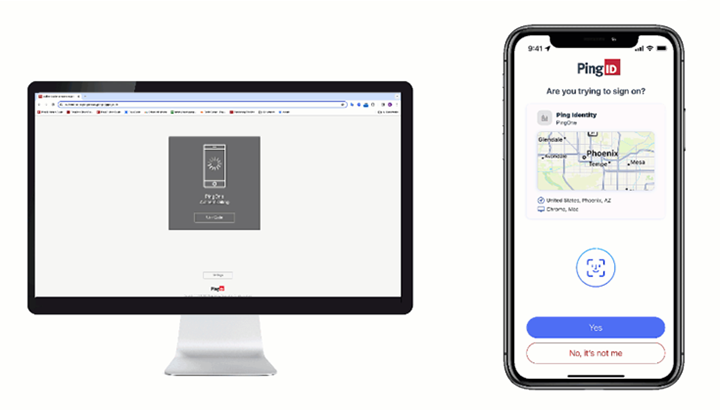
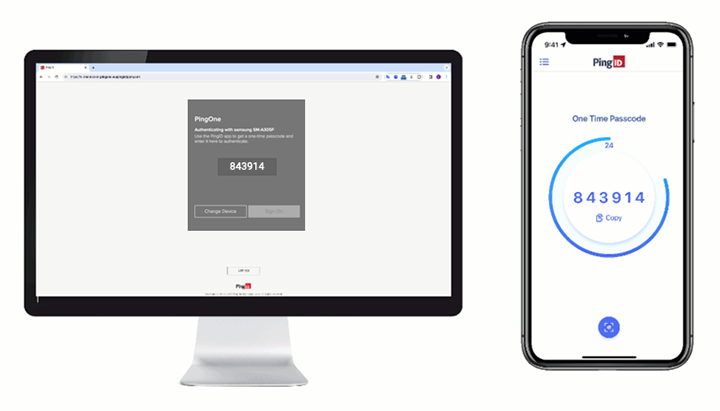
If you do not get a notification, you can:
- select 'Use Code' on your computer
- open your PingID app to get the 6-digit code
- enter the code on your computer for authentication.
If you don’t have your device
If you don’t have your phone, you can generate a one-time passcode. The passcode will be sent to your personal email address.
We’re here to help
For technical support check out our self-help guides or if you still need help, live chat or call IT support on 131 601 and follow the prompts.