Our online enquiry channels, tools and course register interest are temporarily unavailable due to maintenance. Visit our Contact us page for other ways to get in touch.
Skip to main content

- Go to homepage
- About
- Login support for staff
Access your staff account
If you’re a new staff member, follow the steps on this page to set up your TAFE NSW account. Once you have set up your account, you’ll be able to access the TAFE NSW Staff Portal, ServiceNow, Microsoft 365 and other systems.
Log in for the first time
-
Open the personal email account you used for your job application.
-
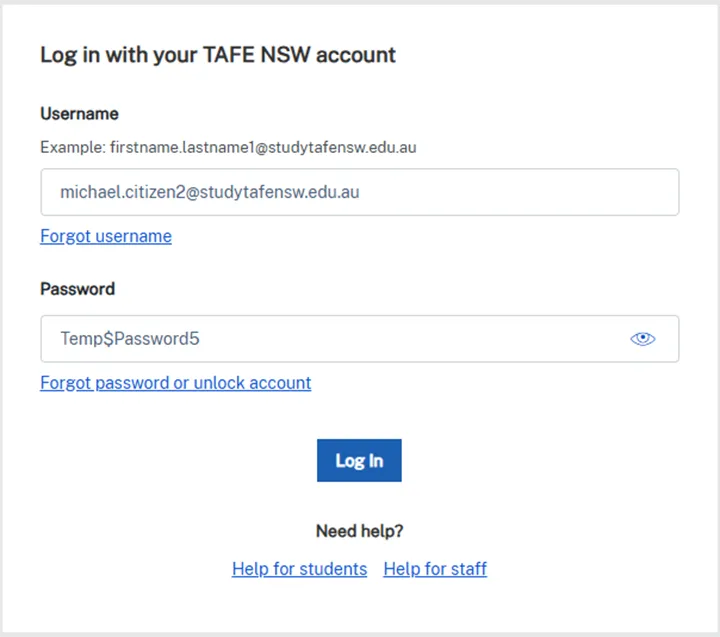
Find the email from TAFE NSW called ‘Set up your TAFE NSW account’. This will have your username. Your username is usually your first name and last name with a dot in between. It may include a number, for example michael.citizen2.
-
Select the link TAFE NSW account login.
-
Enter your username in the ‘Username’ field.
-
Go back to your personal email account and find the email from TAFE NSW called ‘Your TAFE NSW temporary password’. This will have your temporary password.
-
Enter the temporary password in the ‘Password’ field.
-
Select the ‘Log in’ button.
Set your new password
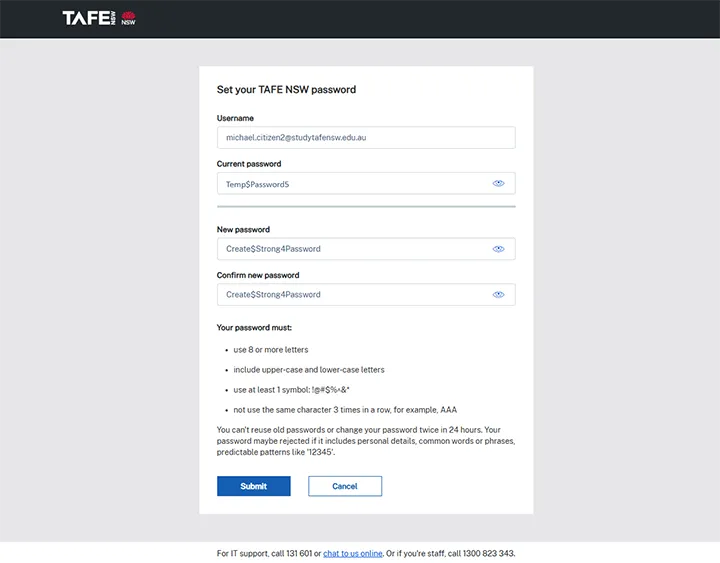
Once you’ve logged in, the ‘Set your TAFE NSW password’ screen should appear.
- Enter your temporary password in the ‘Current password’ field.
- Choose your new password and enter it in both the ‘New password’ and ‘Confirm your password’ fields. Make sure your new password meets all the requirements listed on the screen.
- If you have successfully set your password, the message ‘We’ve updated your password’ will appear on the screen.
Set up PingID
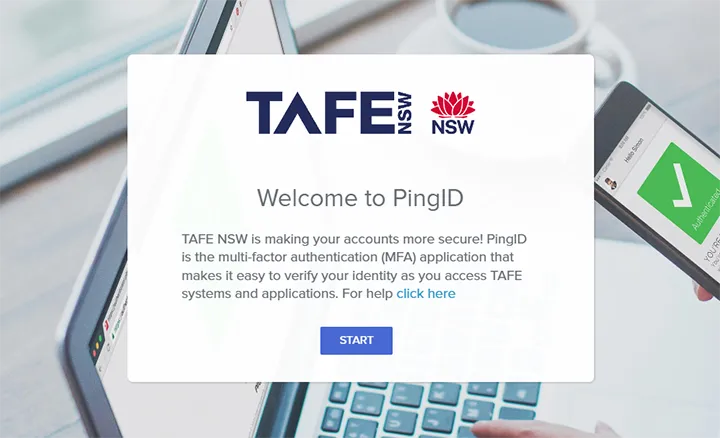
When you log in to your TAFE NSW account for the first time, you’ll be prompted to register with PingID.
PingID is the multifactor authentication software TAFE NSW uses to check your identity when you log in.
You can download the PingID app on devices like:
- iPhones
- Android phones.
To use PingID on your phone, make sure you have enabled a passcode, Face ID or pattern lock.
To download PingID, your device must have one of these operating systems:
- iOS 11.0 or later for iPhones or iPads
- Android 8.0 or later for Android devices.
To register, follow the prompts and enter your TAFE NSW username and password.
Once registered, you’ll be asked to enter your username and password again to activate PingID.
Follow the prompts and select ‘yes’ to activate PingID on your device.
You must use multifactor authentication to access your TAFE NSW account. If you do not want to use PingID, you can use a YubiKey, Security Key or another authenticator app.
Avoid account lockouts
To avoid your account locking, go into your wi-fi settings to remove or ‘forget' and reconnect to the TAFE NSW wi-fi using your new password.
This will prevent your device trying to connect to campus wi-fi using your old password next time you’re on campus. If your account has locked, find out how to unlock your account.
Explore more
Reset your staff password
Find out how to reset your staff password if you’ve forgotten it.
Change a known staff password
If you know your TAFE NSW staff password but need to change it, follow these steps.
Unlock your staff account
If your TAFE NSW staff account is locked, wait for 20 minutes or find out how to unlock it.
Find your staff username
There are a few ways to find your TAFE NSW username. Follow these steps to look it up.
We're here to help
If you need help setting up your TAFE NSW account, speak to your line manager. If you still need help with your account or any other IT problems, contact Staff IT Support on 1300 823 343.