Skip to main content

- Go to homepage
- Study
- Get started
- Downloading software
- Log in to Adobe Creative Cloud
Log in to Adobe Creative Cloud apps
Follow the steps below to log in to Adobe Creative Cloud apps on your device.
If you’re unsure of your TAFE NSW login details, find out how to access your account first.
Step 1
Log onto your computer with your TAFE NSW username and password.
If you're using a library computer and someone else is signed in, go to step 5.
Step 2
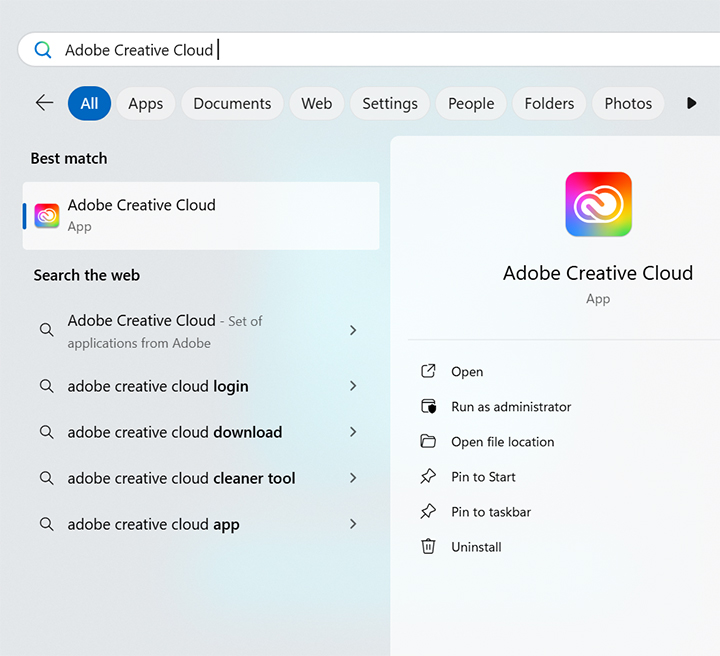
Open any Adobe Creative Cloud application, including Adobe Express.
For Windows users:
- Select the ‘Start’ button.
- Type the application name. For example, ‘Adobe Express’
- Select ‘Enter’.
For macOS users:
- Open ‘Applications’.
- Double-click the application you want to use.
Step 3
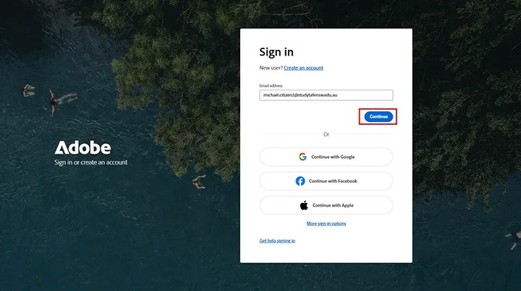
In the sign in pop-up, enter your TAFE NSW email address and click ‘Continue’.
Step 4
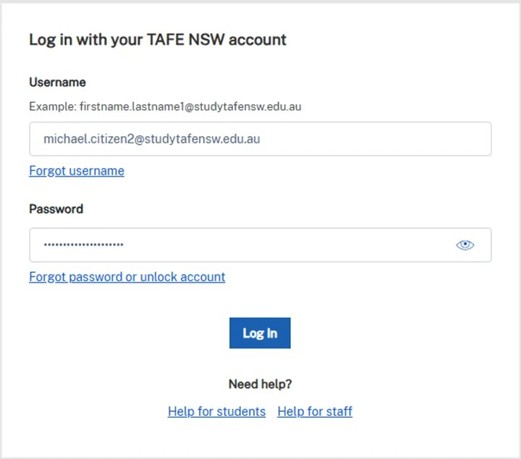
You may be redirected to the TAFE NSW student login portal. If so, log in with your student login details and select ‘Log In’.
Once authenticated, you can use all installed Adobe Creative Cloud applications.
Step 5
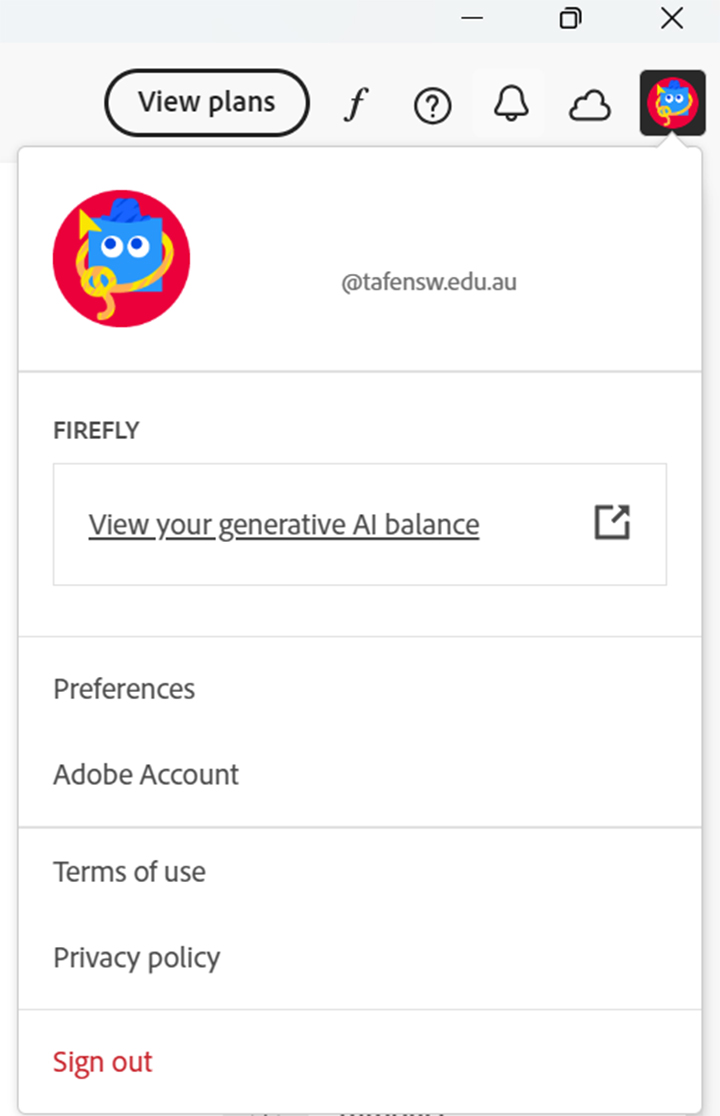
To log out of Adobe Creative Cloud, select your profile picture (the far-right icon), then ‘Sign Out’.
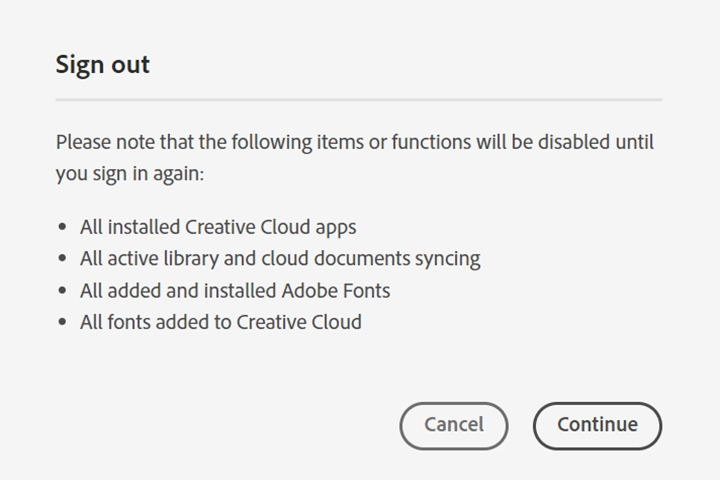
Step 6
In the pop-up, select ‘Continue’.
We’re here to help
For technical support check out our self-help guides or if you still need help, live chat or call IT support on 131 601 and follow the prompts.