Skip to main content

- Go to homepage
- Study
- Get started
- Student log in
Set up your student account
If you’re applying to study with us, follow the steps on this page to set up your TAFE NSW account. You’ll need this account to complete your enrolment, access the Student Hub and online learning tools. You’ll also need it to connect with your teachers and classmates.
If you’ve studied with us before
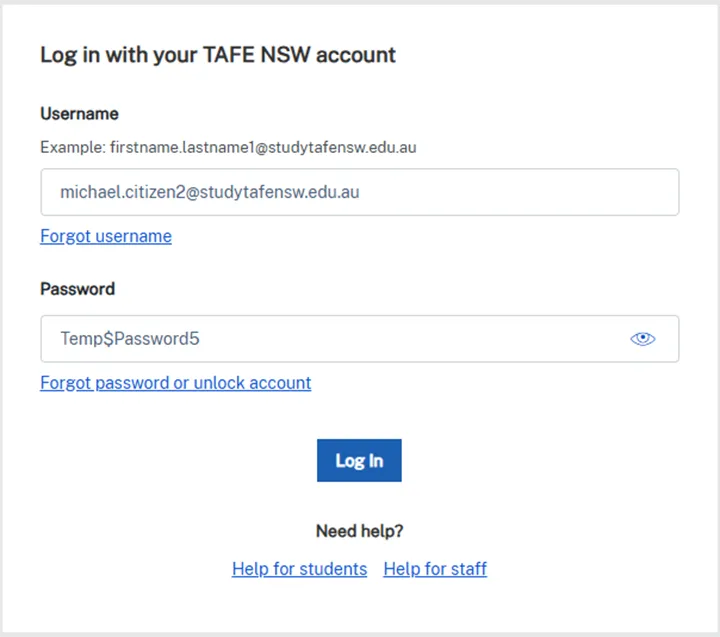
If you’ve studied with us before, try logging in using your old username and password. Your username is usually your first name and last name with a dot in between. It may include a number, for example michael.citizen2.
If your account has been deactivated, you’ll see a ‘We didn’t recognise your username or password message'. Contact Student Services on 131 601 to reactivate it.
If you've studied with us before, your account stays active as long as you log in at least once every 2 years.
New students
You’ll need access to the personal email account you used in your application to find your username and temporary password. If you don’t have an email from us:
- it may be in your spam folder
- you may have used the wrong email address (if you have more than one personal email account)
- you may have mistyped the right email address.
Follow these steps
- Open your personal email account.
- Find the email from TAFE NSW called ‘Set up your TAFE NSW account’. This will have your username. Your username is usually your first name and last name with a dot in between. It may include a number, for example michael.citizen2.
- Select the ‘Student Hub’ link in the email. This will take you to the TAFE NSW login page: my.tafensw.edu.au
- Enter your username in the ‘Username’ field.
- Go back to your personal email account and find the email from TAFE NSW called ‘Your TAFE NSW temporary password’.
- Enter the temporary password in the ‘Password’ field. Select the ‘Log in’ button.
Now you’re ready to set your new password
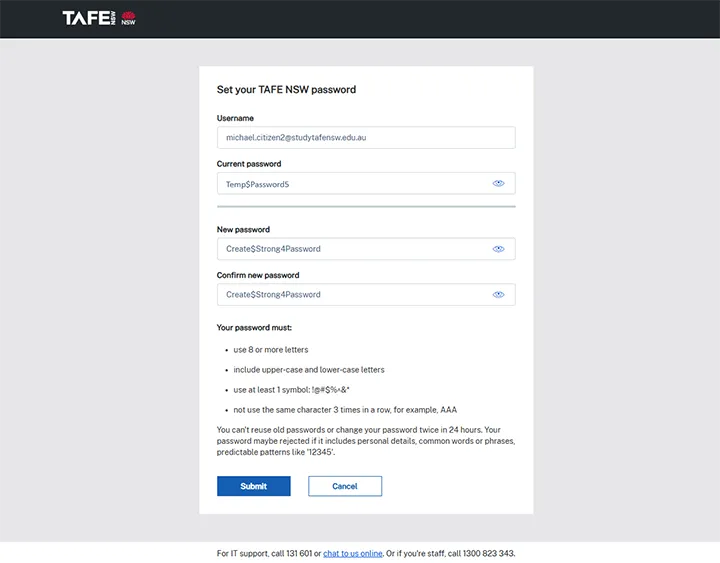
- The ‘Set your TAFE NSW password’ screen should appear.
- Enter the temporary password in the ‘Current password’ field.
- Choose your new password and enter it in both the ‘New password’ and ‘Confirm your password’ fields. Make sure your new password meets all the requirements listed on the screen.
- If you successfully set your password, you’ll have a ‘We’ve updated your password’ message on the screen.
Protect yourself with multifactor authentication
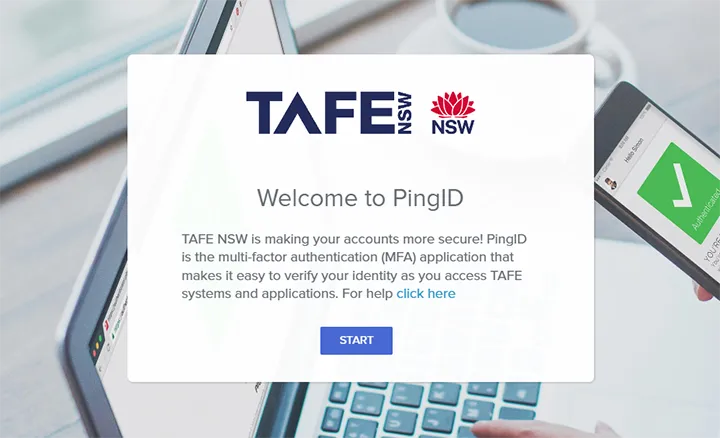
Once you have successfully set your password, you’ll then see a screen inviting you to set up multifactor authentication (MFA). This helps to protect you from cyber attacks and secures your personal information.
If you forget your device, you can log in with a one-time passcode.
We’re here to help
For technical support check out our self-help guides or if you still need help, live chat or call IT support on 131 601 and follow the prompts.