Skip to main content

- Go to homepage
- Study
- MFA
- manage devices
Add another multifactor authentication device
Follow these steps if you’re already using multifactor authentication (MFA) and need to set it up on a second device. You can also select which device will be your main (primary) MFA device and remove devices you no longer use.
Before you start
You’ll need:
- a computer connected to the internet
- your existing device that has been set up with PingID
- the new device you want to set up with MFA.
Account security
If you ever see a request on your device when you're not trying to log in, it could be someone else with your password. If this happens, report it to Student Services urgently on 131 601.
Step 1: Log in to PingOne
-
On your computer, use your internet browser to go to your PingOne My Account.
-
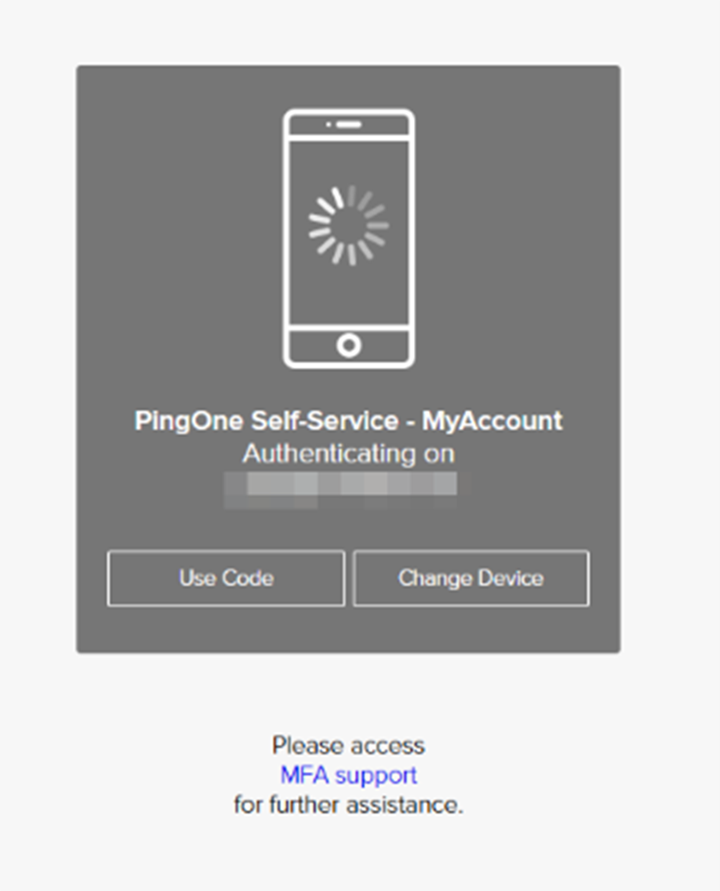
Approve authentication with your existing registered device.
-
The ‘My Account’ page will load.
-
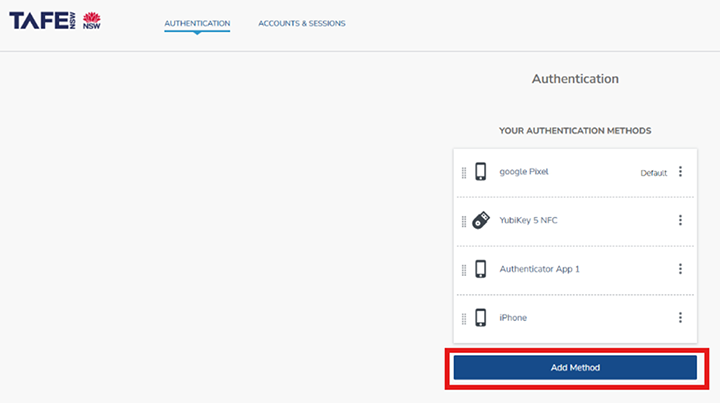
You will see your existing MFA methods in the list.
-
Select ‘Add method’.
Step 2: Add a new device
Select your device
You will now see the ‘Add a new device’ pop-up on your computer screen. This is where you can choose a new device to add MFA for your account.
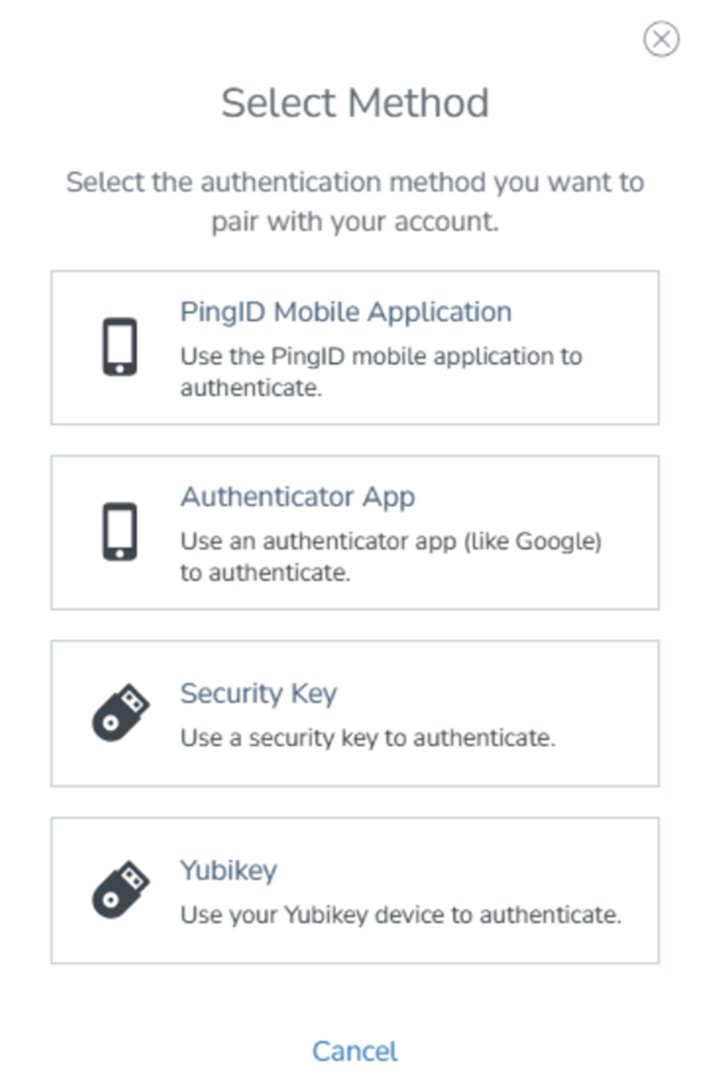
PingID - Apple or Android App on your mobile device
- Install the PingID app onto your phone from the App Store.
- Use the PingID App to scan the QR code showing on your computer screen in the 'Add a new device' pop-up.
- Detailed instructions to set up and manage MFA on your Apple or Android device can be found below.
Microsoft or Google Authenticator on your mobile device
- Install the Authenticator you want to use on your mobile device.
- On your computer, click on the 'Authenticator' option in the 'Add a new device' pop-up.
- Detailed instructions on how to set up and manage MFA using Microsoft or Google Authenticator can be found below.
YubiKey
- To add a YubiKey, select the 'YubiKey' option in the 'Add a new device' pop-up on your computer screen.
- You will be prompted to insert your YubiKey into a USB Port. When the computer has detected it, you will be asked to hold down the 'y' button on the YubiKey.
- Detailed instructions on how to set up and manage MFA using YubiKey can be found below.
Security Key
- To add a Security Key, select the 'Security Key' option in the 'Add a new device' pop-up on your computer screen.
- You will be prompted to insert your Security Key into a USB Port. When the computer has detected it, you will be asked to touch the button on your Security Key.
- Detailed instructions on how to set up and manage MFA using Security Key can be found below.
Manage your devices
You can choose to make your new MFA device your primary device for your account. You can also remove devices you no longer use.
Set a new primary device
To set your newly paired device as your primary authentication method:
-
Use your internet browser to go to your PingOne My Account.
-
Follow the prompts to authenticate yourself with your current method.
-
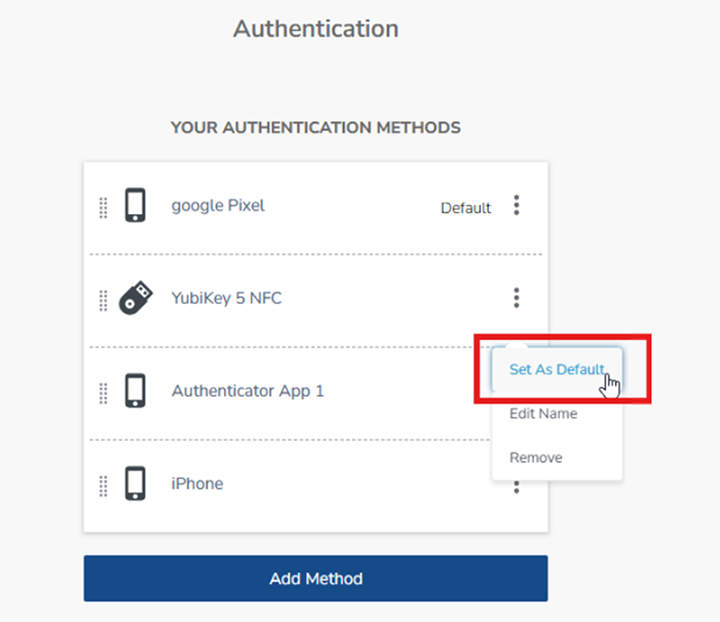
You will see a list of your existing MFA devices.
-
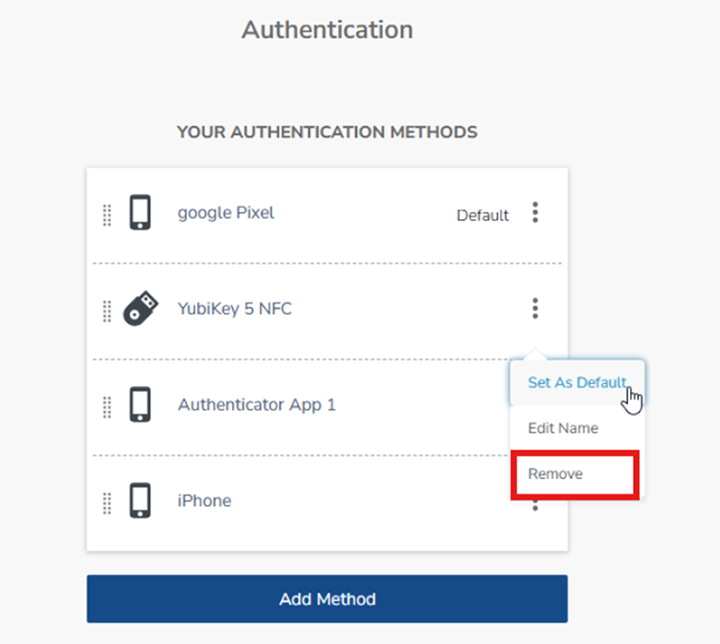
Select the 3 dots (⋮) to the right of the device you wish to make default, and choose ‘Set As Default’ from the menu.
-
Or you can drag and drop your preferred method to the top of the list.
Remove a device
To remove a device you no longer want to use for MFA:
-
Select the 3 dots (⋮) to the right of the device you wish to delete.
-
Select ‘Remove’ from the menu.
We’re here to help
For technical support check out our self-help guides or if you still need help, live chat or call IT support on 131 601 and follow the prompts.